
https://www.mindsetmanage.com/engage-reports/user-interaction-navigation
Navigating and interacting with the Engage REPORTS module is described in this section.
User Interaction & Navigation
The system’s menu, sub-menu structures, side panel, and toolbox functionality are summarized below.
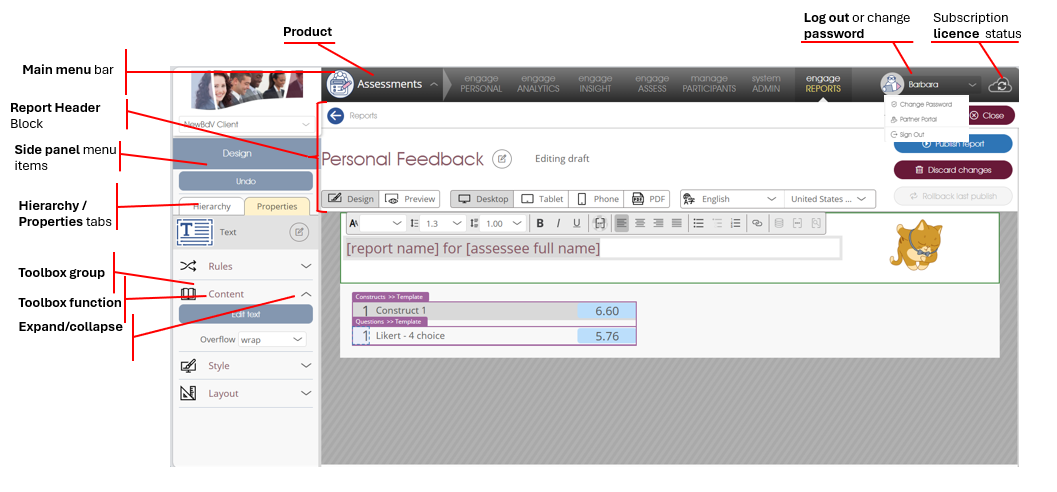
- Main menu bar – allows you to navigate between Engage EX products such as Engage REPORTS, Engage SURVEY or Engage ANALYTICS. A menu item for Engage PARTICIPANTS may also be shown - subject to your login access rights. This product is prominently displayed in the main menu bar because it enables you to load and maintain the list of potential participants for future surveys and/or assessments. It also allows you to manage user access and administrative rights for all Engage EX products.
- Product - reports process either survey or assessment responses. Ensure that the appropriate Engage EX product line has been selected.
- Log out or change password - the name of the signed-in user is displayed on the right in the main menu bar alongside an expand/collapse control which provides access to the sign out and password change functionality.
- Subscription licence status - the status of the user’s subscription license is displayed on the right-hand end of the main menu bar.
- Report Header Block - contains the report name and report level controls.
- Side panel menu items – the side panel is context-sensitive, i.e. it displays only the menus and/or functions which apply to the current status of Engage REPORTS. The side panel will allow you to select a toolbox group (eg. Content) if the Properties tab is selected, or an element from the Hierarchy tab.
- Hierarchy / Properties tabs - these tabs provide access to the correspondingly named menus. The Hierarchy menu controls the selection of the elements that comprise the report and their relationships with one another. The style, layout and other properties of the report content are selected via the Properties menu.
- Toolbox group – some side panel menu items have multiple functions, necessitating consolidation into a toolbox group with a corresponding heading.
- Toolbox function – toolbox functions will allow you to perform various advanced actions associated with the currently selected side panel menu item.
- Expand/collapse control - click on the up or down arrowhead next to the toolbox group heading to expand (show) or collapse (hide) the list of available toolbox functions.
| For more information, click on a sub-menu item at the top of the page⇑ or in the right margin⇒ |