
Engage EX Client Profile Settings
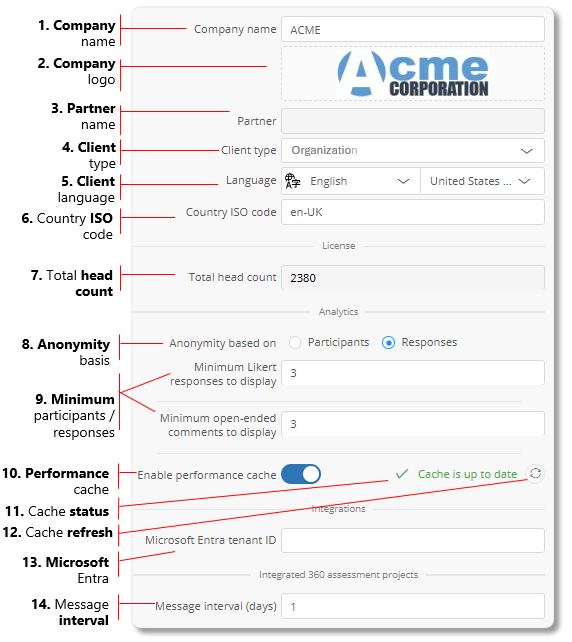
Engage EX Client profile settings:
| 1. | Company name - name of the client company. |
| 2. | Company logo - the client company's logo. |
| 3. | Partner name - name of the Mindset partner, if any, through whom the client contracts with Mindset. |
| 4. | Client type - type of the client company or Demo if the client has yet to bind contractually. |
| 5. | Client language - the default language assigned to employees in the organizational structure, and in which demographics and models are added for the client. |
| 6. | Country ISO code - country of the client company. |
| 7. | Total head count - an indication of the number of employees currently captured in the organizational structure. |
| 8. | Anonymity basis - Anonymity in Engage ANALYTICS can be based on either the number of survey or assessment participants or the number of submitted responses. Participants - is the number of employees invited to participate in the survey/assessment. Even those who do not submit completed questionnaires are counted (as non-responding participants). Responses - the number of submitted responses. Select the appropriate radio button. |
| 9. | Minimum participants/responses to display - The minimum number of participants or responses (whichever anonymity is based upon - see 8 above), required for displaying results. If the number of survey or assessment participants/responses is less than the minimum, results will not be displayed in the Engage ANALYTICS dashboard. The minimums may be specified separately for Single-choice/Likert questions and Open-ended questions, but both minimums pertain to the anonymity basis indicated via the selected radio button. |
| 10. | Performance cache slider - enables or disables the Engage ANALYTICS cache (for System Administrator use only). |
| 11. | Performance cache status - The Engage ANALYTICS reports of surveys and/or assessments whose responses have been cached in the dedicated Engage ANALYTICS cache are generated far more quickly and efficiently than those that are not cached. The status displays as either Cache is up to date, Cache disabled, Checking cache status or Processing n change(s) if the cache is in the process of being updated. |
| 12. | Performance cache refresh - manual refresh of the Engage ANALYTICS cache (for System Administrator use only). |
| 13. | Microsoft Entra tenant ID - when integrating Engage EX with Microsoft TEAMS®, the client's Microsoft Entra tenant ID must be provided. |
| 14. | Message interval (days) - the number of days per Integrated 360 assessment message cycle. The first message sent during the Assessment phase of an Integrated 360 project creates the integrated assessment dashboard, initiates the cycle, and is forwarded to the email server for delivery. All messages sent during the remainder of the integrated assessment cycle are not forwarded to the email server; their content is used to update the integrated assessment dashboard. |
| For more information, click on a sub-menu item at the top of the page⇑ or in the right margin⇒ |