
https://www.mindsetmanage.com/engage-reports/manage-custom-reports

When the Reports menu item is active, a list of custom reports created for this Engage EX client, if any, and a list of custom reports available as templates will be presented.
Reports
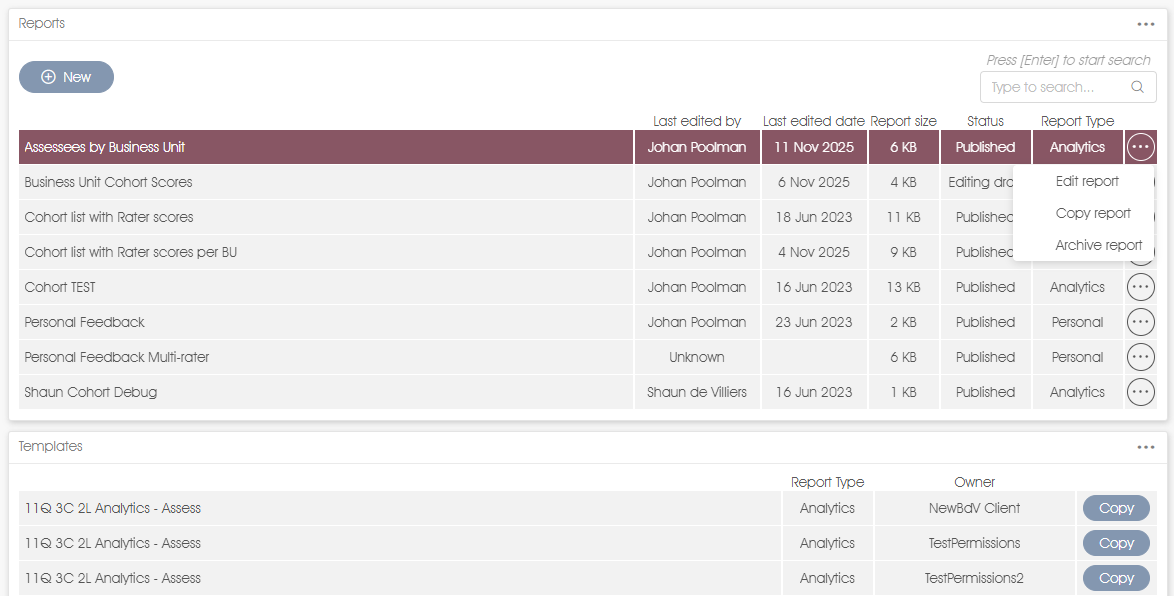
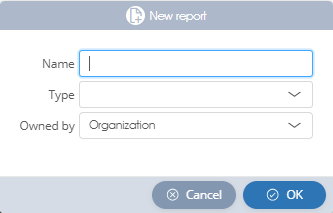
- +New button – click the button to create a new report definition from scratch. The New report window will request a name for the report. The report Type (see below) and the business unit the report is Owned by must be selected from the dropdowns.
- Report Status – reports have a status of either:
- Published - can be viewed by the client,
- Editing draft - reports with this status are undergoing revision; ie., at least some changes to the report definition are not viewable by the client.
- Report Type – all reports are of either Personal or Analytics report type.
- Personal reports are viewed via Engage PERSONAL or directly following survey completion. Personal reports associated with 360 multi-rater assessments are defined in the Assessee reports and Practitioner/manager reports settings. When associated with a survey the Personal feedback reports setting is used to define the report.
- Analytics reports are viewed via Engage ANALYTICS or Engage INSIGHTS. They are defined in the Analytics reports setting when associated with surveys or assessments.
- Edit report - click the drop-down menu item, or double-click on the report row, to edit the report.
- Copy report - a dialogue window will open:
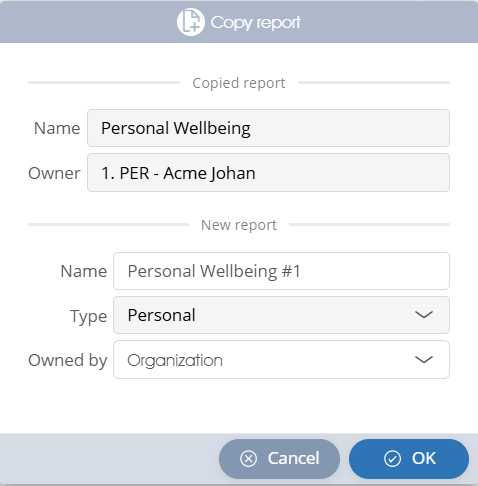
Enter a name for the new report and a business unit owner from the Owned by dropdown. Please note that you cannot modify the report type. - Archive report - click the Archive button in the confirmation window to proceed with the archiving of the report.
Templates
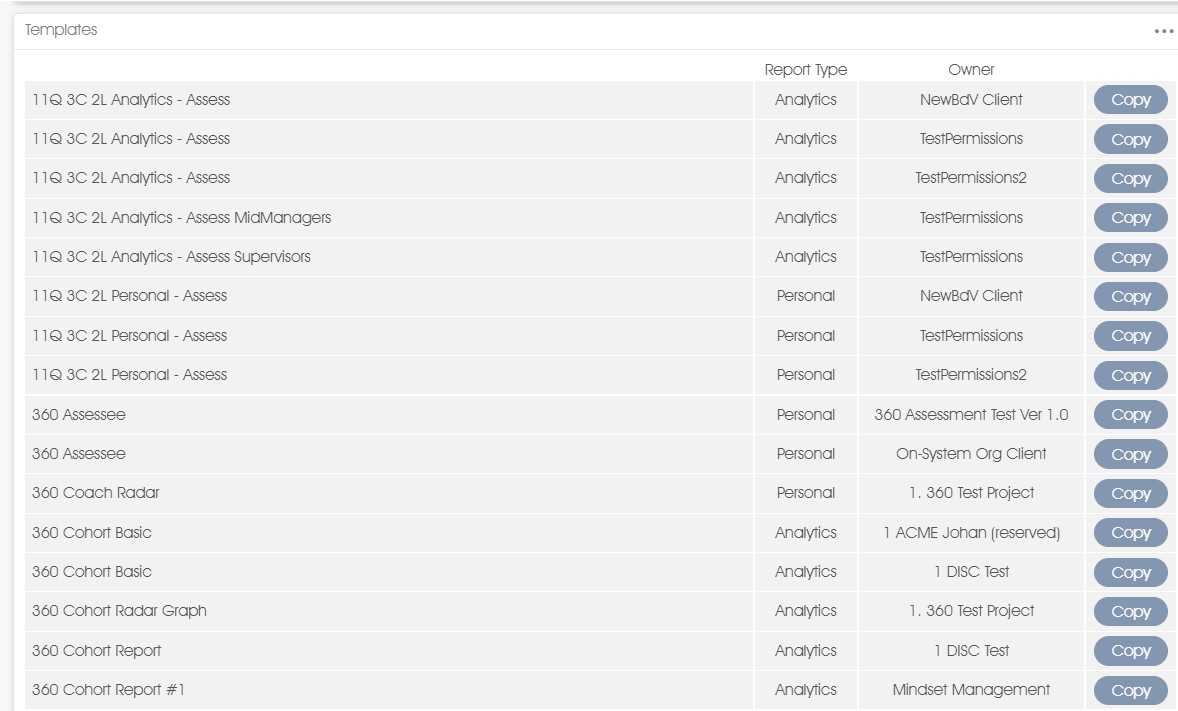
Templates are ready-to-use report definitions provided by Mindset and/or its Partners, which may be used as the basis for new reports. Templates can be copied and used as-is, or they can be customized and changed to reflect the client's needs.
To create a report based on a template, select the template from the list and click the Copy button.
| For more information, click on a sub-menu item at the top of the page⇑ or in the right margin⇒ |