
Replaces currently live Configure Project help page assessments/define-assess-project/assessment-project-configurations
Complete - waiting for completion of linked-to help pages
Engage ASSESS supports 360 Multi-rater assessments and Individual assessments. Projects of both assessment types require configuration i.e. customization of their assessment settings, but they are described in dedicated help pages as the configuration differs so greatly between the assessment types.
Individual Assessment Settings
See the configuration settings for Individual assessments on the Configure an Individual assessment help page.
360 Multi-rater Assessment Settings
The Configure menu allows you to select or change the assessment project settings. Please note that the Assessment model and Email assessment links to employees with emails settings cannot be changed once the project has been launched and the assessment has started.
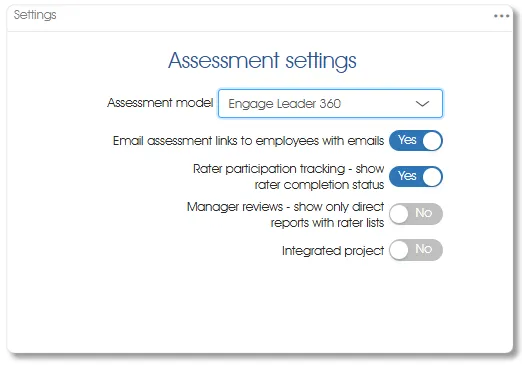
- Assessment model – the model, selected during assessment project creation, that is used in the current project.
- Email assessment links to employees with emails – set this option to Yes if you want the system to send emails containing unique links to all selected participants with valid email addresses. If this option is set to No when the project is launched the system will never send any emails. This setting can only be changed before the assessment project is launched, and please note that no indication is given that emails are not being sent.
- Rater participation tracking – show rater completion status - for participants who are raters only (not both assessees and raters in this project) this setting toggles between the generic Rater email sent icon and a more detailed indication of the ratings completed to date and the display of the Rater has completed all assessments icon. Additional details are also displayed for rater tracking when this slider is set to Yes. This setting can be changed at any time.
- Manager reviews - show only direct reports with rater lists - when set to No, the Manager review link will list all the manager's direct reports regardless of rater list status. If this setting is set to Yes, the Manager review link will list only direct reports who already have rater lists. A manager whose direct reports all lack rater lists will receive a message to that effect (see Manager reviews for more).
- Integrated project – set this option to Yes if this assessment project will form part of a 360 Integrated assessment project. Please note that all the client's assessment projects with Integrated project set to Yes will be included in the Integrated assessment project. It is vitally important to reset this option to No when the need for the integrated dashboard functionality has passed, unless the project is closed immediately (see Integrated assessment projects for more).
360 Multi-rater Assessment Planned Dates
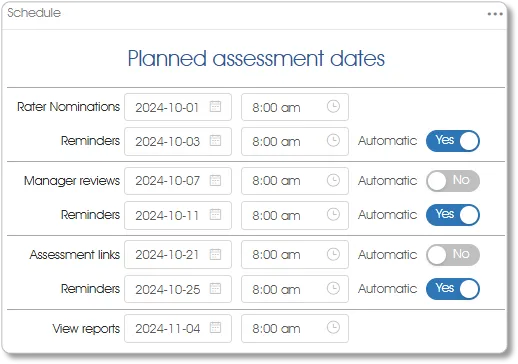
- Planned assessment phases starting dates and times – planning the timing of the start of each assessment phase. These dates are for planning purposes only, ensuring that the user retains control over the entire assessment process. Capturing these dates and times without setting the associated Automatic slider to Yes will not trigger any assessment-related activities.
- Automated reminder emails – the sending of automated reminder emails is optional. By capturing each assessment phase's reminder email's send date and time and setting the corresponding Automatic slider to Yes, you are directing Engage ASSESS to send automated reminder emails on your behalf. Whether reminder emails have been automated or not, there are various other mechanisms for sending reminder emails, and no limit to the number of resends.
- Non-automated reminder emails – planning for the sending of reminder emails without automatically triggering them can be done by capturing reminder email send date(s) and time(s) and ensuring that the corresponding Automatic slider(s) are set to No.
360 Multi-rater Assessment Questionnaires
This panel assigns assessment questionnaires to raters.
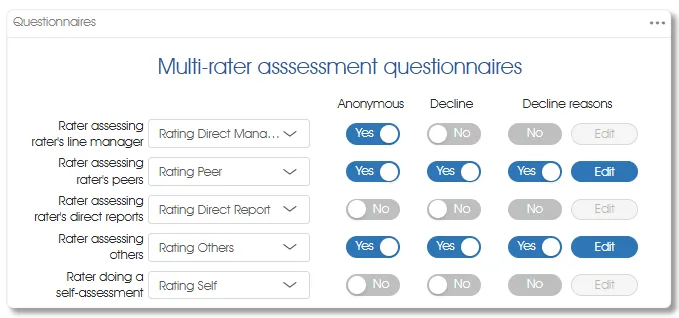
For each type of rater to be included in the assessment, select the applicable questionnaire from the dropdown list. The same questionnaire may be selected for multiple rater types, or each rater type may have a specifically customized questionnaire assigned to it.
Rater types that won't be utilized in the assessment need not have questionnaires assigned to them. Please note, though, that the presence of rater type(s) without assigned questionnaire(s) has the following implications:
- Auto-population does not cater for rater type(s) without assigned questionnaire(s) - before nominating raters via any method that utilizes auto-population, either explicitly or implicitly, ensure that questionnaires have been assigned to all rater types who will be participating in the assessment. If a rater type has no assigned questionnaire, the auto-population process will not determine raters of that type. If missing rater type(s) are identified after auto-population, the situation is easily rectified by assigning the necessary questionnaire(s) and rerunning the auto-population process. Problems might arise if missing rater type(s) are not identified or if rectification is incomplete and/or inconsistent.
- The assessment tester must be designated as a rater type with an assigned questionnaire - ensure that the assessment testers are defined with rater type(s) that have questionnaires assigned to them. Please note that the system does not issue warnings in this regard. If the tester(s) click on the links in their test emails and do not see a questionnaire at all, it is because the tester(s) have been designated as rater type(s) that do not have assigned questionnaires.
- Raters may receive blank questionnaires - although the auto-population process will not nominate raters of a type that have no assigned questionnaire, nothing prevents assessees, line managers or system administrators from doing so. If raters click on their assessment links and do not see a questionnaire, it is because those raters have been designated as rater type(s) that do not have assigned questionnaires.
Anonymous option
The Anonymous option can be set independently for each rater type. Even if the same questionnaire is used, the Anonymous option setting can differ with the rater type to which the questionnaire is assigned. By default, assessments of line managers, peers and others are anonymous (these sliders are set to Yes) and direct reports and self-assessments are non-anonymous. They can be changed before the project is activated, but not thereafter.
The results of anonymous assessments can never be linked to the raters who evaluated them. The results are displayed only in aggregations in accordance with the client's anonymity threshold. For small groupings, for example a small business unit in which the number of direct reports rating their line manager is less than the anonymity threshold, setting the Anonymous option to No for that rater type would circumvent the non-display problem, should the client wish to do so.
Decline option
The Decline options are also set independently for each rater type. By default, no rater may decline to rate any assessee (the sliders are all set to No), but they can be changed at any time.
Setting a Decline slider to Yes will provide an associated Decline button on the raters' dashboards (see Information for Assessment link email recipients for more).
Decline reasons option
The Decline reasons option is activated (non-greyed-out) for each rater type for which the Decline slider has been set to Yes. To activate the decline reasons both the Decline and the Decline reasons sliders must have been set to Yes, and the reasons must have been edited. Please note that although the sliders can be changed at any time, the reasons cannot be edited after the project has been launched. Click the Edit button to open the Reasons for declining window:
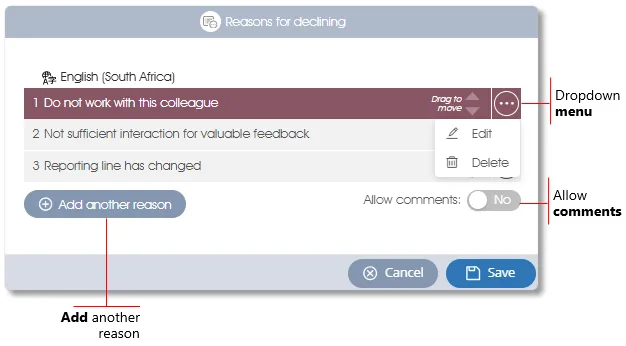
- Add another reason - click on the button to add another reason.
- Dropdown menu - provides access to the toolbox functions Edit reason and Delete reason.
- Allow comments - permit the rater to enter a self-worded reason for declining the assessment.
| For more information, click on a sub-menu item at the top of the page⇑ or in the right margin⇒ |