
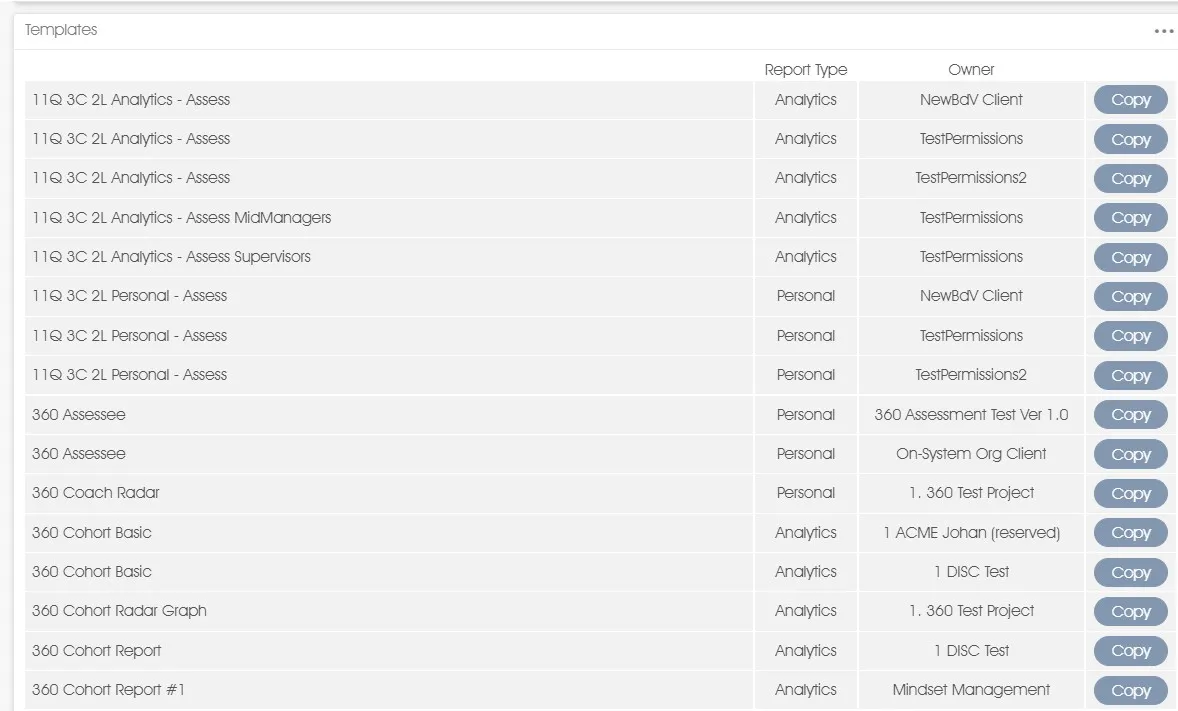
When the Reports menu item is active you will be presented with a list of custom reports, if any, which have been created for this Engage EX client, followed by a list of custom reports, if any, which are available as templates to this Engage EX client.
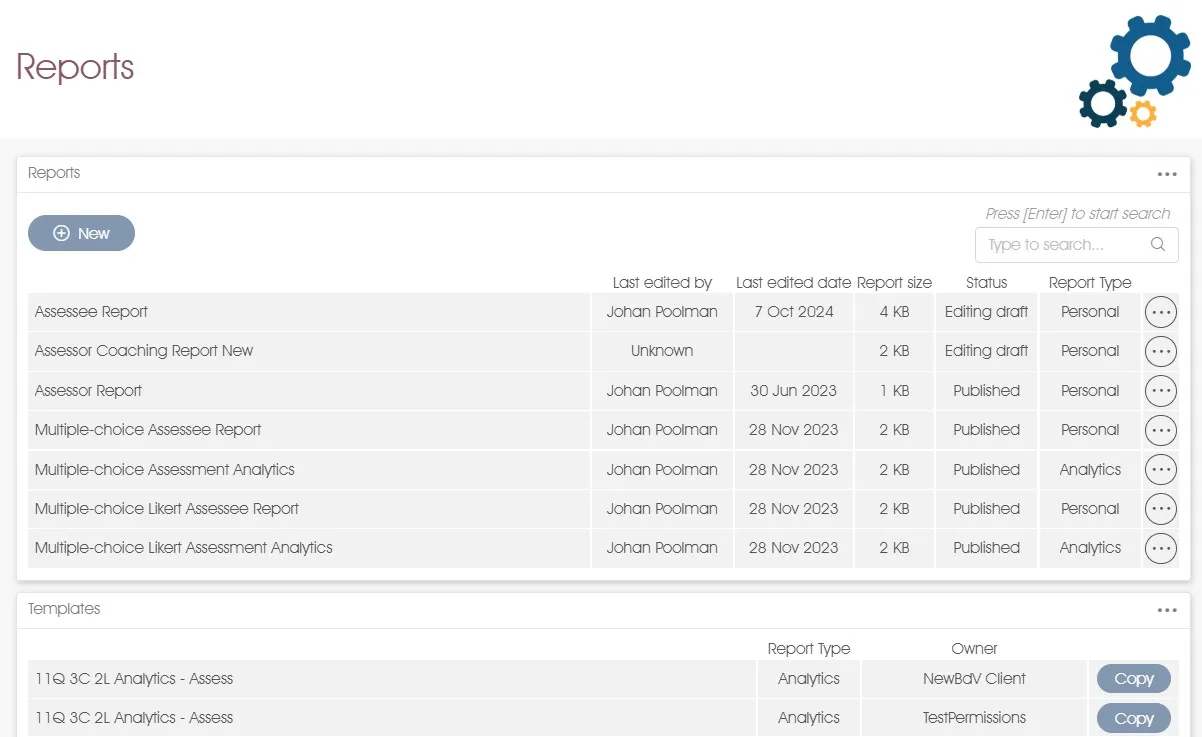
Reports
- Report Type – all reports are of either Personal or Analytics report type. Analytics reports are viewed via Engage ANALYTICS or Engage INSIGHTS. When associated with a survey or assessment they are defined in the Analytics reports setting. Personal reports are viewed via Engage PERSONAL or directly following survey completion. When associated with a survey they are defined in the Personal feedback reports setting. Personal reports associated with 360 multi-rater assessments are defined in the Assessee reports and Practitioner/manager reports settings.
- Report Status – allows you to navigate between Engage EX products such as Engage REPORTS, Engage SURVEY or Engage ANALYTICS. The name of the signed-in user and the status of the user’s subscription license are displayed on the right in the main menu bar. A menu item for Engage PARTICIPANTS may also be shown - subject to your login access rights. This function is prominently displayed in the main menu bar because this product enables you to load and maintain the list of potential participants for future surveys and to manage user access and administrative rights for all Engage EX products.
- +New button – allows you to navigate between Engage EX products such as Engage REPORTS, Engage SURVEY or Engage ANALYTICS. The name of the signed-in user and the status of the user’s subscription license are displayed on the right in the main menu bar. A menu item for Engage PARTICIPANTS may also be shown - subject to your login access rights. This function is prominently displayed in the main menu bar because this product enables you to load and maintain the list of potential participants for future surveys and to manage user access and administrative rights for all Engage EX products.
- Search function – the side panel is context-sensitive, i.e. it displays only the menus and/or functions which apply to the current status of the product or module in use. The side panel will allow you to select a toolbox group (eg. Content) if the Properties tab is currently selected, or an element from the Hierarchy tab.
- Hierarchy / Properties tabs - these tabs provide access to the correspondingly named menus. The Hierarchy menu controls the selection of the elements that comprise the report and their relationships with one another. The style, layout and other properties of the report content are selected via the Properties menu.
- Toolbox group – some side panel menu items have multiple functions, necessitating consolidation into a toolbox group with a corresponding heading.
- Click on the up or down arrowhead next to the toolbox group heading to expand (show) or collapse (hide) the list of available toolbox functions.
- Toolbox function – toolbox functions will allow you to perform various advanced actions associated with the currently selected side panel menu item.
| For more information, click on a sub-menu item at the top of the page⇑ or in the right margin⇒ |